Not every department or organization has Zoom Webinars. If you will have fewer than 100 people, you can host a panel discussion on Zoom Meetings, which is a more affordable subscription.
If you’re looking for more basic help on how to use Zoom, go ahead and mosey on over to this Video Explainer about Zoom I did to help you. Go on. We’ll be here when you’re ready to learn how to host panel discussions.
How to host a panel discussion on Zoom:
A panel discussion on Zoom Meetings differs from a general zoom meeting because some people in the meeting are speakers and the rest are attendees. Panel discussions on Zoom need to be set up slightly differently to ensure everyone has the best experience and you aren’t interrupted by zoom bombers (strangers who spam your event with porn or hate speech) or well-meaning attendees who decide to participate although not invited to do so.
A panel discussion or public event is more likely to be targeted by zoom bombers because it was likely promoted on social media where Zoom Bombers might have learned about it.
Ensuring the best experience for your panel and your guests really comes down to a few extra mouse clicks.
Here are some tips on how to use Zoom for Panel Discussions
Have an admin who isn’t one of the speakers:
If you are one of the presenters, make sure you have someone who is managing attendees for you, and make sure they know how to use Zoom and all of its features:
- like muting someone’s mic
- pinning the videos of your panelists
- disabling video of guests.
There is literally no point in having someone administer your meeting who isn’t able or willing to do those things. They might as well not be there.
If you have turned over YOUR account to someone else so they can administer your meeting, you need to do two key things:
- Sign out of Zoom
- Rename the account you join your call in so people know it’s you
Signing out of Zoom:
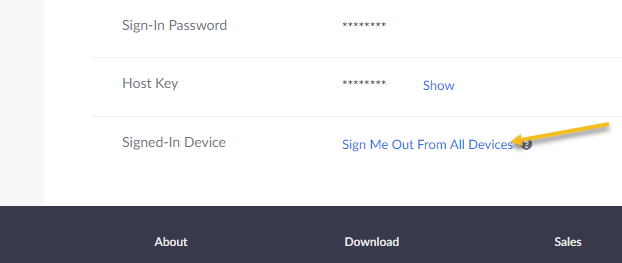
You need to click the link at the bottom that says “Sign Me Out From All Devices” in “My Account”. It’s not enough to sign out from your desktop alone because if you are signed in on any other device, including your handheld, it will log you in as you and certain functionalities, like administering polls, etc. will not be available to your admin who is supposed to be doing that.
To make sure you are logged out of everything, go to “Sign Me Out that right at bottom above the menu in the footer.
Renaming the account you join discussion under:
If you’ve turned over your account to someone else to handle the admin, they will need to change the name that they appear under (so they don’t appear under you name) and you need to do the same so that your name appears under your face.
You or the admin can do that by going to the Participants tab in the menu for the live meeting, highlighting the participant who needs the name change, hitting “more” and then hitting Rename.
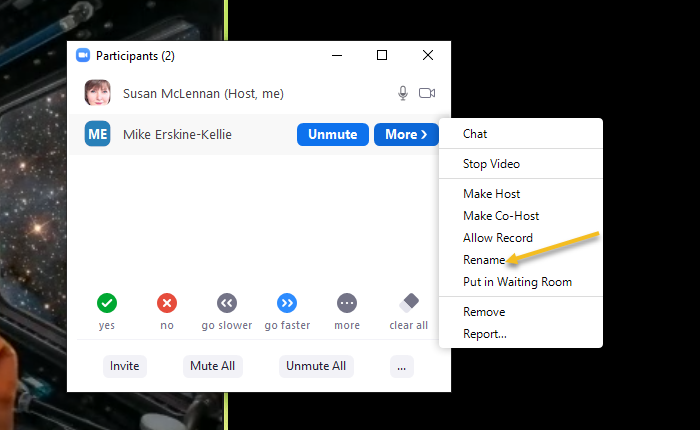
You will also see other handy things you can do in this menu. You can:
- make them the host or a cohost
- stop their video
- chat with them
- or, if they are disruptive, you can:
- remove them
- report them
Audio:
When setting up your meeting, set the audio for both telephone and computer audio. Sometimes connections are bad, and it’s helpful for people to be able to call in if the computer audio isn’t ideal. If you have people from outside of the US, make sure you enable the call in phone numbers from the applicable countries.
Mute Attendees Mics:
Upon setting up a panel discussion using Zoom meeting, set the microphones for the attendees to mute — and once you’re in the meeting, make sure attendees can’t unmute the mics themselves.
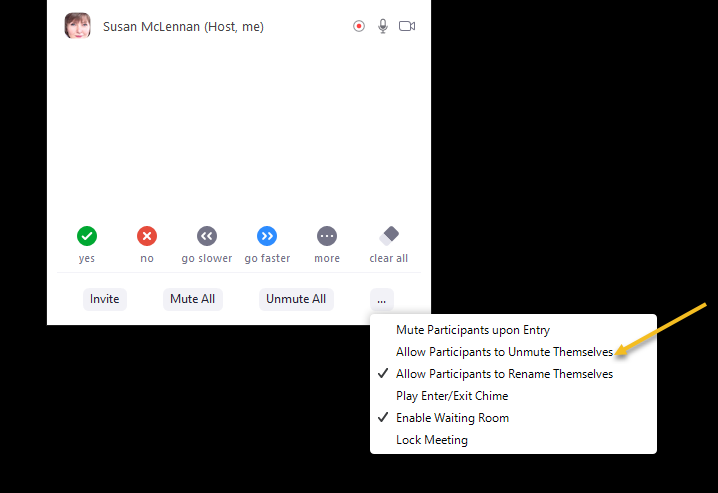
Here’s how. Once you’re in the meeting, go down to the “participants tab”. You will see 3 dots to the right.
In there, make sure you uncheck the option box that allows your participants to unmute themselves.
There is nothing more miserable for presenters or guests than an unqualified attendee taking over your meeting by deciding they are a panelist when they are not.
Recording your meetings:
Don’t forget, you have the option to record your meeting. That’s important because you can count on a good percentage or your registrants not making it and many of them asking you for a recording after.
There is a record button, likely at the bottom of your zoom screen or, for some people, under the more button or 3 dots. You will have a choice to record to the cloud or to your computer. Your cloud recordings will fill up quickly, although they are handy for sharing.
Pin your panelists:
Especially if you are recording, you want to pin your panelists so that viewers, be they live or after the fact, see the speakers and not random people. In meetings, you will have to do this for each of your panelists, but it’s important. Otherwise, you may find that your recording is unusable.
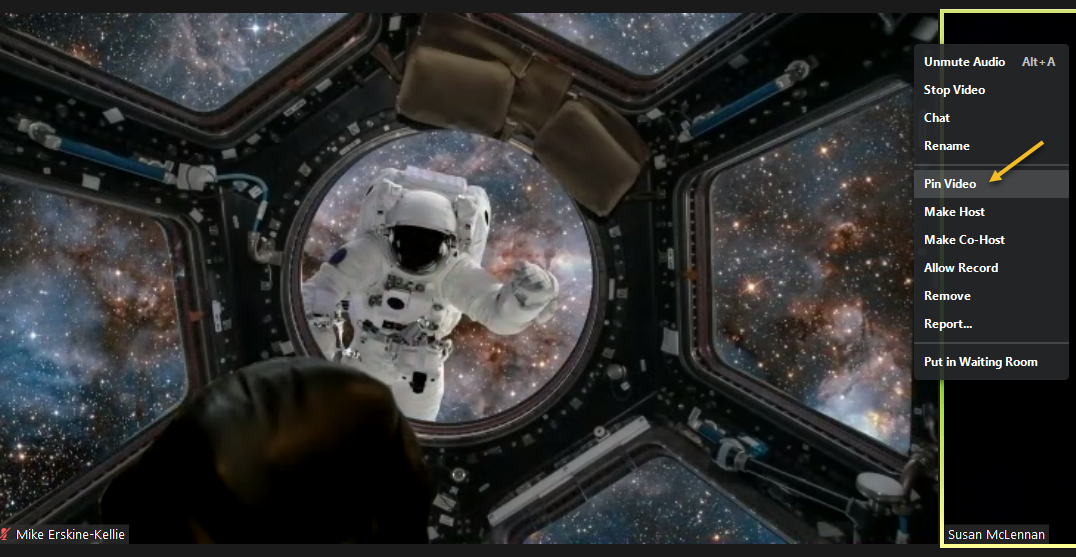
To do that, go to the screen of the person you want to pin and look for the 3 dots, most likely to the top right of the person’s screen. Those dots will appear when you hover your mouse over that area, as per the below.
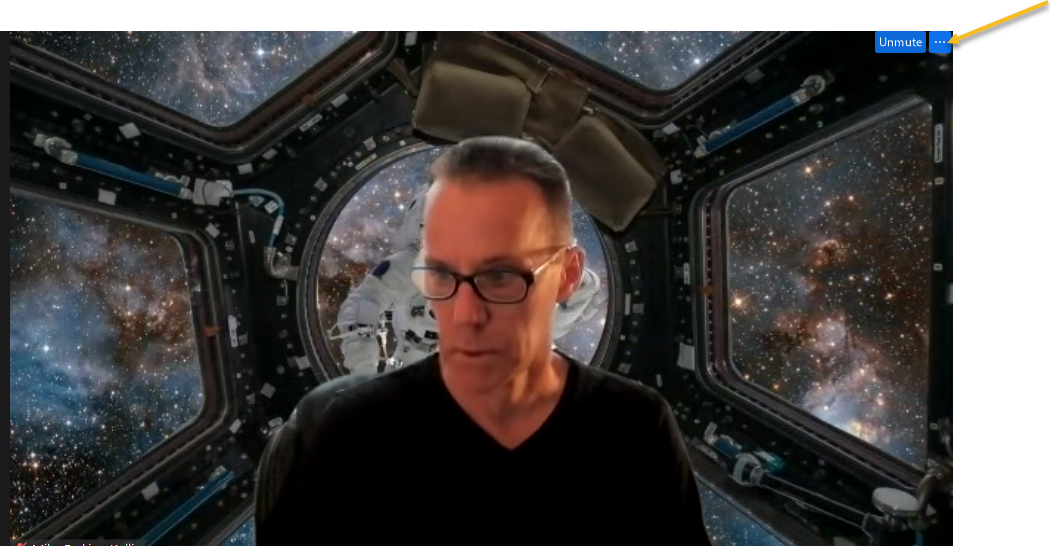
From there, you can pin that person’s video by hitting the “pin video” option.
Screen sharing:
You probably also want to turn screen sharing off except for the host. To do that, when your meeting has started, go down to the “share screen” tab at the bottom in green.
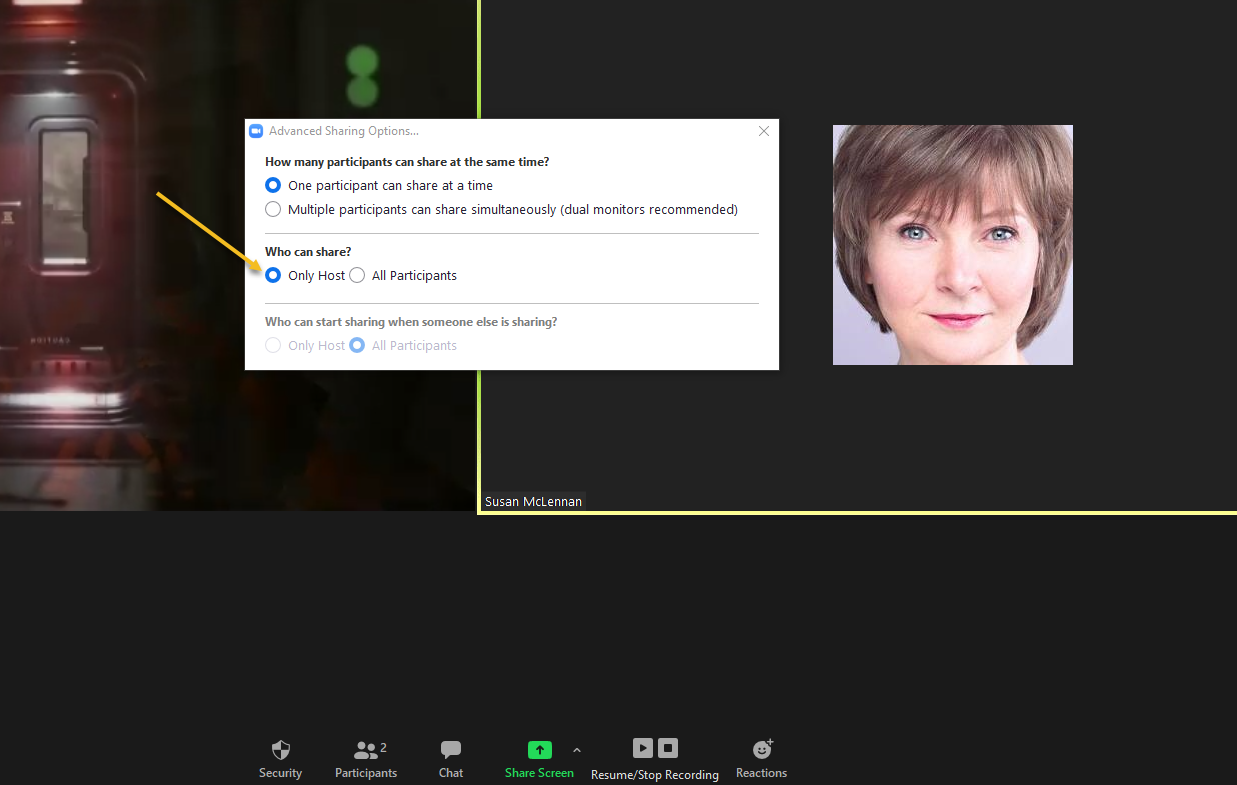
When you hit the arrow to the right of the green icon, you will see an option down on the bottom for “Advanced Screen Sharing Options.” Make sure you hit “only host”.
Should you want other presenters to be able to share their screens as you go, you can make them cohosts which will give them the same privileges as you. Otherwise, you will have to go in and change the setting we just changed back to “all participants.”
Other settings to turn off:
You might want to make sure other features are also turned off, and those re best done in your account settings before you have your call.
In your Zoom account dashboard, go to “Account Settings.”
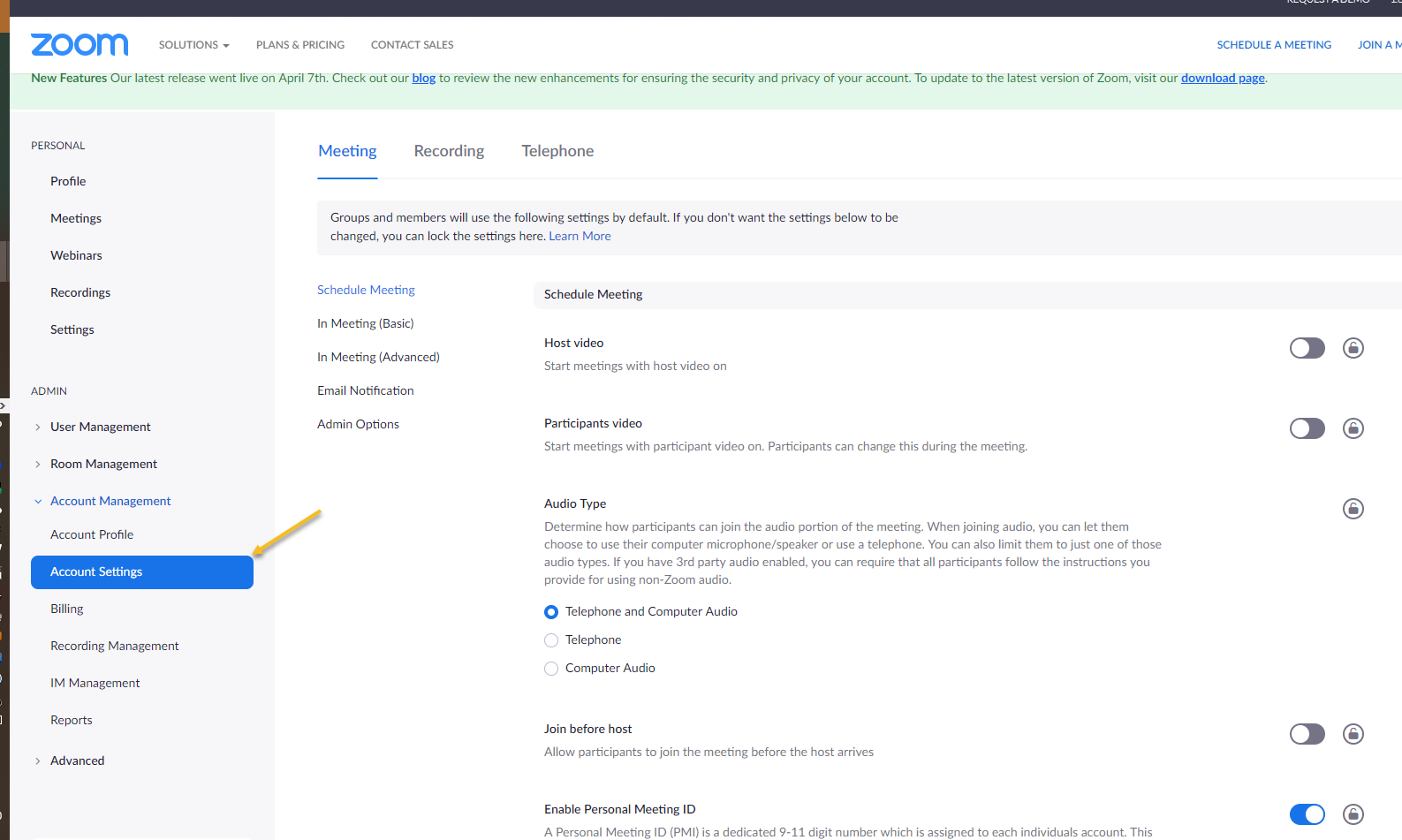
Turn off File Transfer:
Once in there, turn your File Transfer option off.
File transfer lets people share files in the chat. Potentially useful in small meetings but less so in a panel discussion and you could find that a zoom bomber uses that feature to spam your gang with porn, threats or hate speech.
This is why we can’t have nice things.
Turn off Annotations:
While you’re in your Account Settings, you may also want to turn off annotations because otherwise, someone within the group could just start writing across the screen, and you’d be hard-pressed to figure out who the trixter is. I’ve actually seen it happen.

Tech Rehearsal and walk through EVERYTHING:
One last thing. Schedule a tech rehearsal with your admin person and talk through all of the above settings and make sure they’re in place. Make sure they also know when and how they are expected to jump in and what to do if something goes wrong.
But to be extra safe:
Know your tools and be ready to jump in. You shouldn’t have to, but if you do, you’ll at least know what to do.


Susan McLennan
Latest posts by Susan McLennan (see all)
- THE ESSENTIAL BRAND STORY CHECKLIST - June 20, 2024
- How to Get Your Brand Noticed in a Crowded Market - June 20, 2024
- 9 Need-to-Know Rebranding Tips - June 20, 2024
- How to Turn Your Personal Story Into a Compelling Brand - June 20, 2024